> ## Documentation Index
> Fetch the complete documentation index at: https://docs.fyatu.com/llms.txt
> Use this file to discover all available pages before exploring further.
# CaaS Portal Overview
> The Fyatu CaaS Portal at platform.fyatu.com — configure card products, manage cardholders, API keys, and billing for your branded card program.
The **Fyatu CaaS Portal** at [platform.fyatu.com](https://platform.fyatu.com) is the management platform for card program operators. It gives your team full control over your card program — from onboarding and KYB through to issuing cards, managing cardholders, monitoring spending, and handling billing.
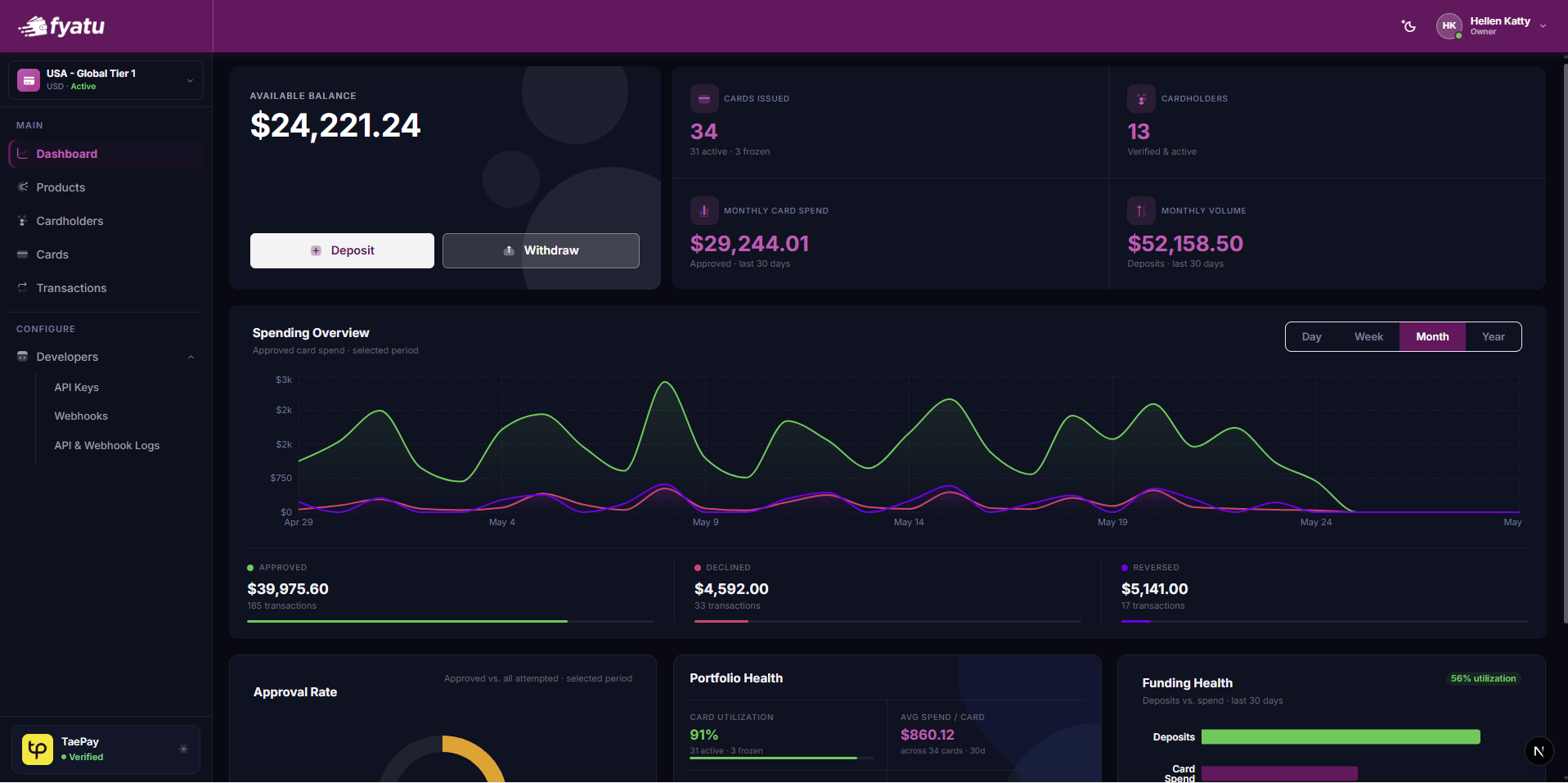 Define your card program template — set the card scheme, features, spend limits, and MCC restrictions.
Manage cardholder identities, monitor KYC status, and perform lifecycle actions.
View all issued cards, monitor balances, and perform freeze, fund, and terminate operations.
Generate scoped API keys, configure webhook endpoints, and review API request logs.
Fund your program balance, pay invoices via USDT, and track your deposit history.
Invite team members, assign roles, and manage access permissions.
## How to Access
Access to the CaaS Portal is **by invitation only**. Fyatu provisions your account after you contact the sales team and complete onboarding.
Define your card program template — set the card scheme, features, spend limits, and MCC restrictions.
Manage cardholder identities, monitor KYC status, and perform lifecycle actions.
View all issued cards, monitor balances, and perform freeze, fund, and terminate operations.
Generate scoped API keys, configure webhook endpoints, and review API request logs.
Fund your program balance, pay invoices via USDT, and track your deposit history.
Invite team members, assign roles, and manage access permissions.
## How to Access
Access to the CaaS Portal is **by invitation only**. Fyatu provisions your account after you contact the sales team and complete onboarding.
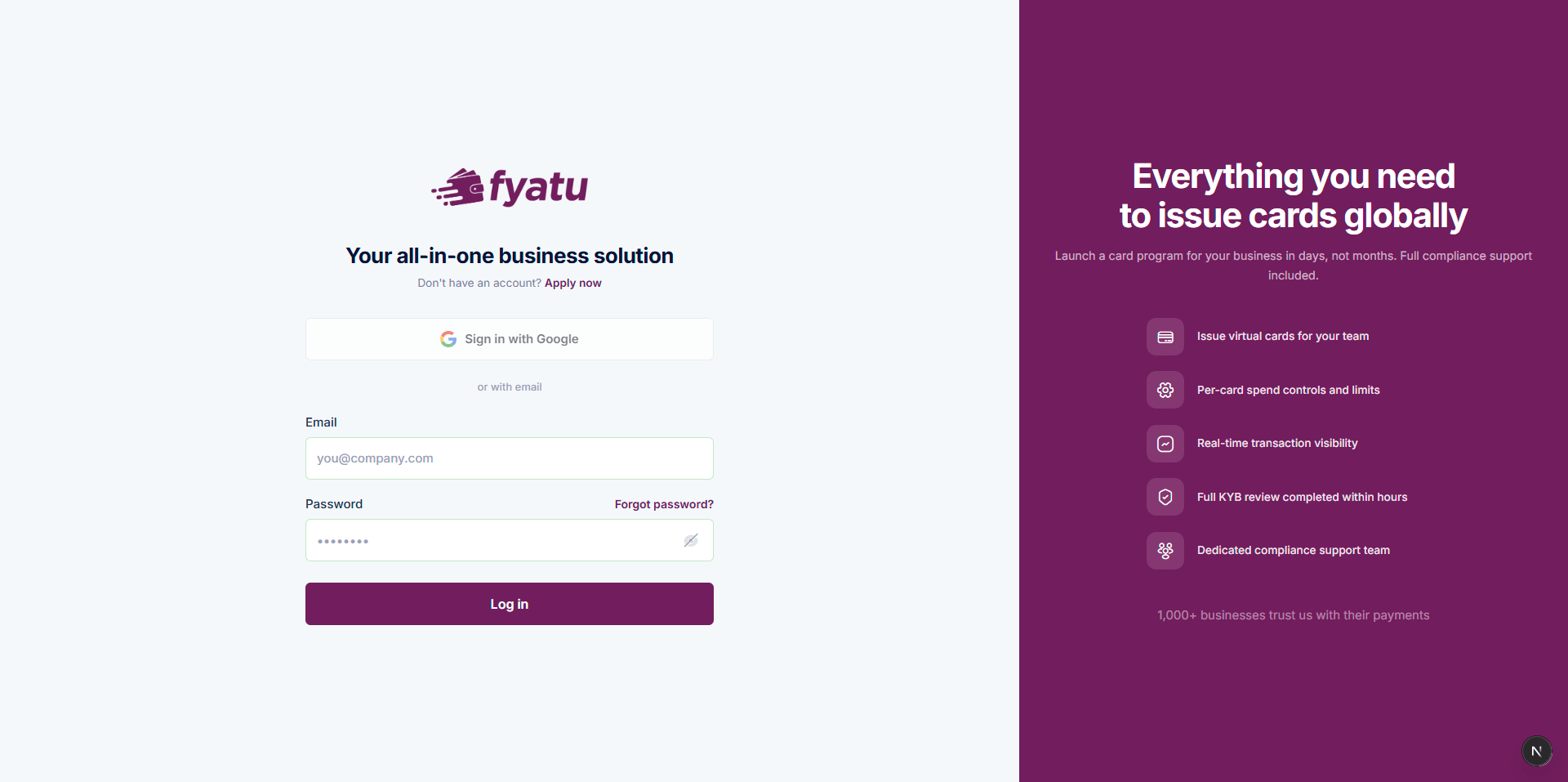 Reach out at [fyatu.com/contact](https://fyatu.com/contact/) or email [sales@fyatu.com](mailto:sales@fyatu.com) to discuss your card program requirements.
After agreeing on commercial terms, pay the one-time program setup fee to initiate provisioning.
You receive an invitation email. Click the link to create your administrator account on [platform.fyatu.com](https://platform.fyatu.com).
Submit your business verification documents through the guided 6-step KYB onboarding flow.
Once onboarding is complete, you have immediate access to the **Sandbox** environment to build and test your integration.
## Environments
The CaaS Portal operates two fully isolated environments:
| Environment | Description |
| ----------- | ----------------------------------------------------------------------------------------------------------- |
| **Sandbox** | Test environment with synthetic data. API calls do not process real transactions. No real cards are issued. |
| **Live** | Production environment. Real cards are issued. Real funds are moved. |
The environment switcher is visible in the top navigation bar of the portal. Your API keys, products, cardholders, and cards are separate between environments.
## Team Management
Invite team members from **Settings → Team**. Each member is assigned a role that controls what they can see and do in the portal:
Reach out at [fyatu.com/contact](https://fyatu.com/contact/) or email [sales@fyatu.com](mailto:sales@fyatu.com) to discuss your card program requirements.
After agreeing on commercial terms, pay the one-time program setup fee to initiate provisioning.
You receive an invitation email. Click the link to create your administrator account on [platform.fyatu.com](https://platform.fyatu.com).
Submit your business verification documents through the guided 6-step KYB onboarding flow.
Once onboarding is complete, you have immediate access to the **Sandbox** environment to build and test your integration.
## Environments
The CaaS Portal operates two fully isolated environments:
| Environment | Description |
| ----------- | ----------------------------------------------------------------------------------------------------------- |
| **Sandbox** | Test environment with synthetic data. API calls do not process real transactions. No real cards are issued. |
| **Live** | Production environment. Real cards are issued. Real funds are moved. |
The environment switcher is visible in the top navigation bar of the portal. Your API keys, products, cardholders, and cards are separate between environments.
## Team Management
Invite team members from **Settings → Team**. Each member is assigned a role that controls what they can see and do in the portal:
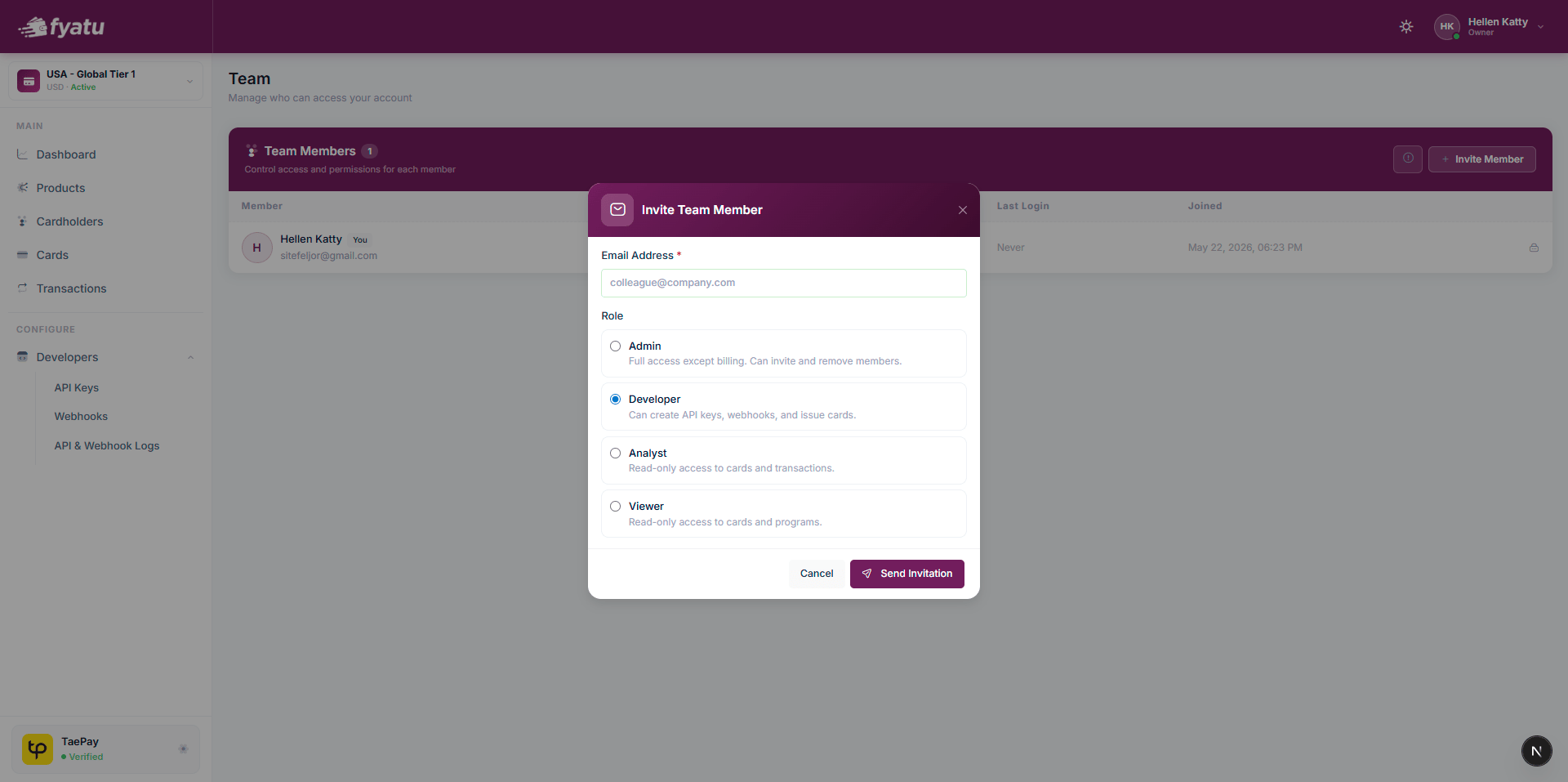 | Role | Permissions |
| ------------- | ----------------------------------------------------------------- |
| **Owner** | Full access — billing, settings, team management, all features |
| **Admin** | Full feature access — cannot manage billing or transfer ownership |
| **Developer** | API keys, webhooks, and read access to all data |
| **Analyst** | Read-only access to transactions, analytics, and reports |
| **Viewer** | Read-only access to cardholders and cards |
| Role | Permissions |
| ------------- | ----------------------------------------------------------------- |
| **Owner** | Full access — billing, settings, team management, all features |
| **Admin** | Full feature access — cannot manage billing or transfer ownership |
| **Developer** | API keys, webhooks, and read access to all data |
| **Analyst** | Read-only access to transactions, analytics, and reports |
| **Viewer** | Read-only access to cardholders and cards |