> ## Documentation Index
> Fetch the complete documentation index at: https://docs.fyatu.com/llms.txt
> Use this file to discover all available pages before exploring further.
# Card Products
> Define your card program template — configure the card scheme, features, spend limits, and MCC restrictions before issuing any cards.
A **Card Product** is the template that defines everything about the cards you issue: the card scheme (Visa or Mastercard), enabled features, spend limits, and merchant category controls. Every card issued via the API is created from a product — the product ID determines what the card can and cannot do.
Think of a product as your program blueprint. You configure it once, and every card issued under it inherits its rules.
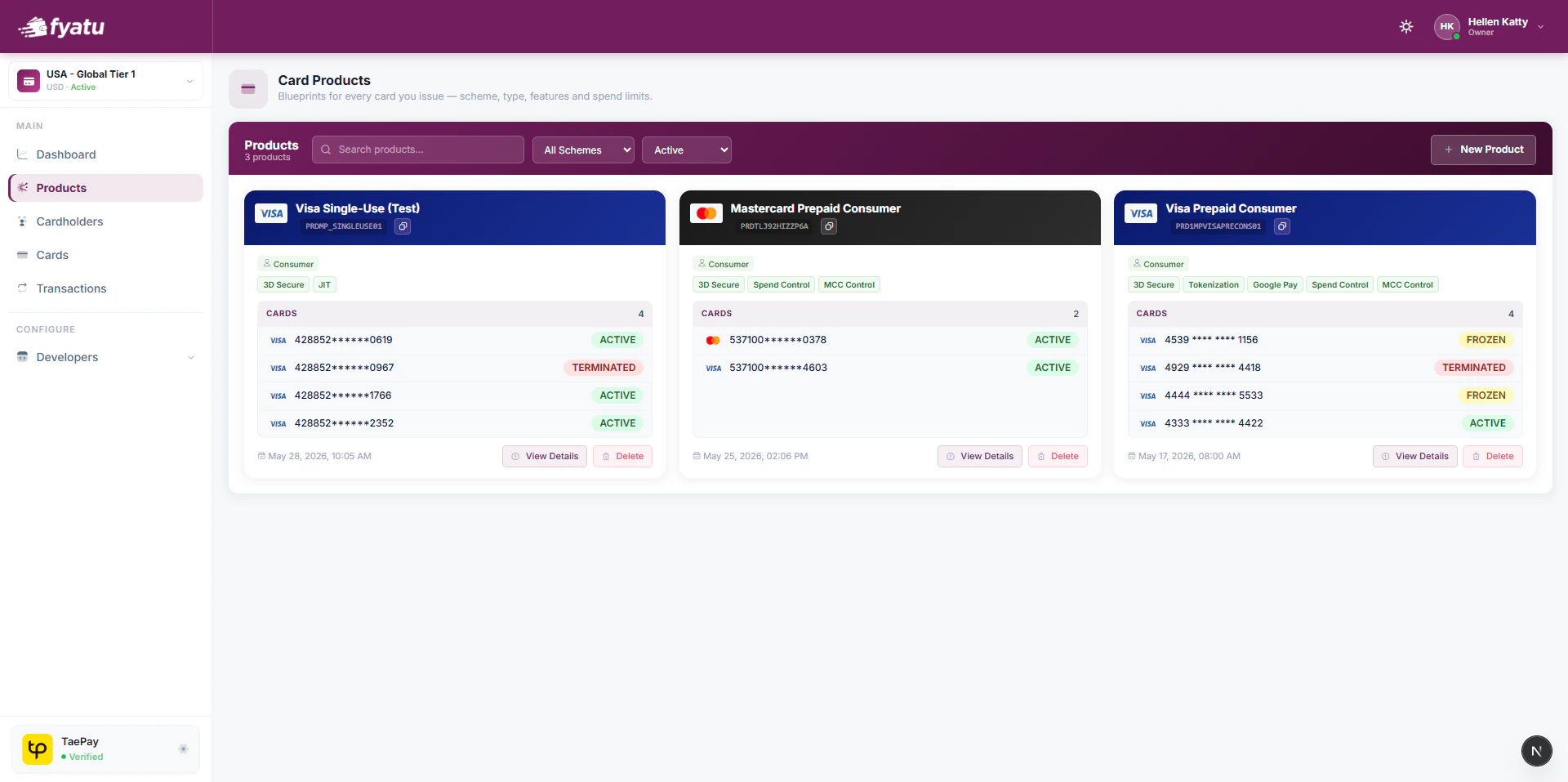 ## Creating a Product
Click **Products** in the CaaS Portal sidebar.
Select the card scheme (Visa or Mastercard) and give the product a name.
Toggle the features you need — 3D Secure, Apple Pay / Google Pay tokenisation, JIT Funding, Spend Controls, and MCC Controls.
Configure per-card spending limits and any merchant category restrictions (allowed or blocked MCC codes).
Once configured, activate the product. All cards issued under it immediately inherit its settings.
## Product Configuration
| Setting | Description |
| --------------------------- | --------------------------------------------------------- |
| **Name** | Internal label for this product |
| **Card Scheme** | Visa or Mastercard |
| **Spending Limit per Card** | Maximum balance a single card under this product can hold |
| **Monthly Spending Limit** | Maximum total spending per card per month |
| **Allowed Categories** | Whitelist of MCC codes permitted for transactions |
| **Blocked Categories** | Blacklist of MCC codes automatically declined |
## Features
| Feature | Description |
| -------------------------- | -------------------------------------------------------------------------------------------- |
| **3D Secure** | Enables 3DS authentication for online purchases |
| **Apple Pay / Google Pay** | Enables card tokenisation for mobile wallets |
| **JIT Funding** | Just-in-time authorisation — your webhook approves or declines each transaction in real time |
| **Spend Controls** | Enforces the per-card spending limit at the network level |
| **MCC Controls** | Applies your allowed / blocked merchant category lists at authorisation time |
## Issuing Cards from a Product
Once a product is active, pass its `productId` when creating cards via the API:
```bash theme={null}
POST /api/v3.20/cards
{
"cardholderId": "chl_...",
"productId": "prd_..."
}
```
The `productId` is shown on the product detail page in the portal and returned by the [List Products](/v3.20/api-reference/products/list) endpoint.
## Program Balance
All cards across all products draw from a single USD program balance pool. Fund it via USDT deposits — see [Billing & Funding](/v3.20/caas-portal/billing).
Cards cannot be issued or funded if the program balance is insufficient. Monitor the balance via the dashboard widget or subscribe to the `ACCOUNT_LOW_BALANCE` webhook event.
## Creating a Product
Click **Products** in the CaaS Portal sidebar.
Select the card scheme (Visa or Mastercard) and give the product a name.
Toggle the features you need — 3D Secure, Apple Pay / Google Pay tokenisation, JIT Funding, Spend Controls, and MCC Controls.
Configure per-card spending limits and any merchant category restrictions (allowed or blocked MCC codes).
Once configured, activate the product. All cards issued under it immediately inherit its settings.
## Product Configuration
| Setting | Description |
| --------------------------- | --------------------------------------------------------- |
| **Name** | Internal label for this product |
| **Card Scheme** | Visa or Mastercard |
| **Spending Limit per Card** | Maximum balance a single card under this product can hold |
| **Monthly Spending Limit** | Maximum total spending per card per month |
| **Allowed Categories** | Whitelist of MCC codes permitted for transactions |
| **Blocked Categories** | Blacklist of MCC codes automatically declined |
## Features
| Feature | Description |
| -------------------------- | -------------------------------------------------------------------------------------------- |
| **3D Secure** | Enables 3DS authentication for online purchases |
| **Apple Pay / Google Pay** | Enables card tokenisation for mobile wallets |
| **JIT Funding** | Just-in-time authorisation — your webhook approves or declines each transaction in real time |
| **Spend Controls** | Enforces the per-card spending limit at the network level |
| **MCC Controls** | Applies your allowed / blocked merchant category lists at authorisation time |
## Issuing Cards from a Product
Once a product is active, pass its `productId` when creating cards via the API:
```bash theme={null}
POST /api/v3.20/cards
{
"cardholderId": "chl_...",
"productId": "prd_..."
}
```
The `productId` is shown on the product detail page in the portal and returned by the [List Products](/v3.20/api-reference/products/list) endpoint.
## Program Balance
All cards across all products draw from a single USD program balance pool. Fund it via USDT deposits — see [Billing & Funding](/v3.20/caas-portal/billing).
Cards cannot be issued or funded if the program balance is insufficient. Monitor the balance via the dashboard widget or subscribe to the `ACCOUNT_LOW_BALANCE` webhook event.